Run Multiple Companies with Separate Books
If your product keeps books for more than one business, each business needs its own ledger. In Paprel that is one company per business, all paid for by one organization. This walkthrough starts from a single sandbox company, adds a second, posts one journal in each, and checks that neither can read the other's. Every further company is the same three steps.
You need one set of credentials for all of it. There is no contract and no sales call: an organization is a company on Paprel that adds other companies to its plan.
Start with Post Your First Journal in 5 Minutes if this is your first Paprel request. Want the full SaaS pattern in one command, with an invoice, a payment and reports per customer? Run the multi-tenant accounting API example.
Using an AI coding agent? Skip to the prompt for it.
One minute: the three steps below, run against a trial organization.
Sandbox only. This creates a real sandbox company and example journals. It does not change your plan or company count, charge a card, or move money. Each run creates new records; nothing is rolled back automatically.
Validation: the example is tested against the published request schemas and mocked response fixtures. It has not been verified against your sandbox company's configuration.
Manage companies in the web app
Everything this guide does through the API, a person can do in the Paprel web app. No client, no token, no code.
- Sign in to the company that pays for the others and open Settings → Organization. It lists every company on the plan, how many are active, and the billing period.
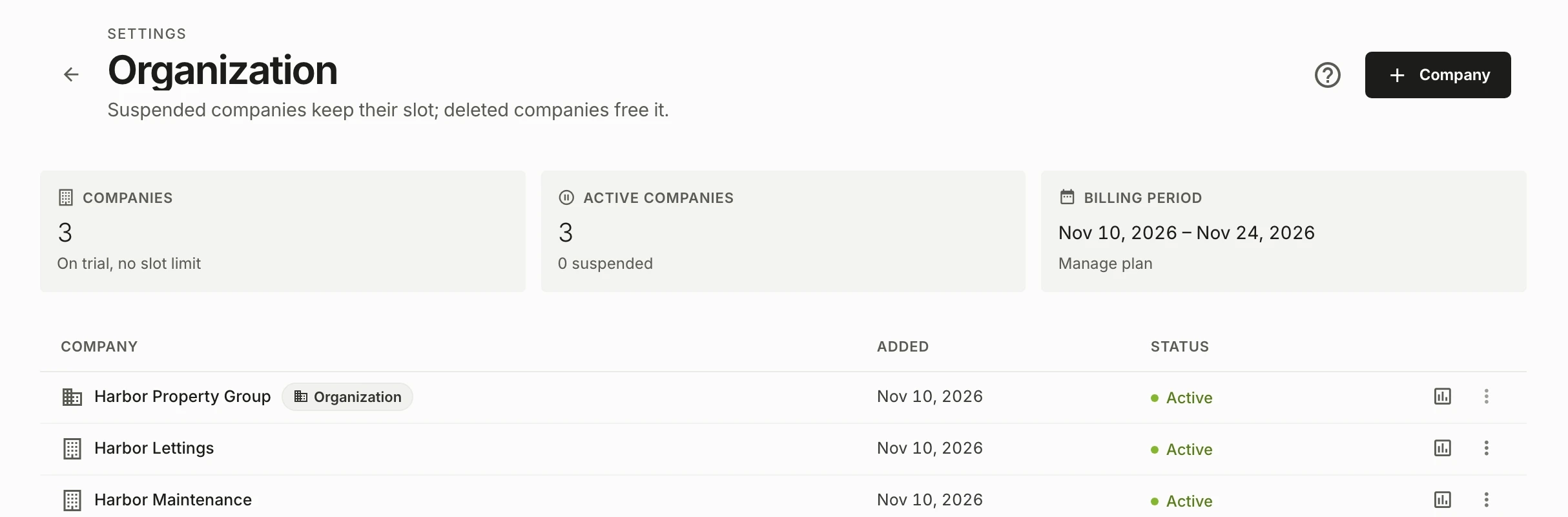
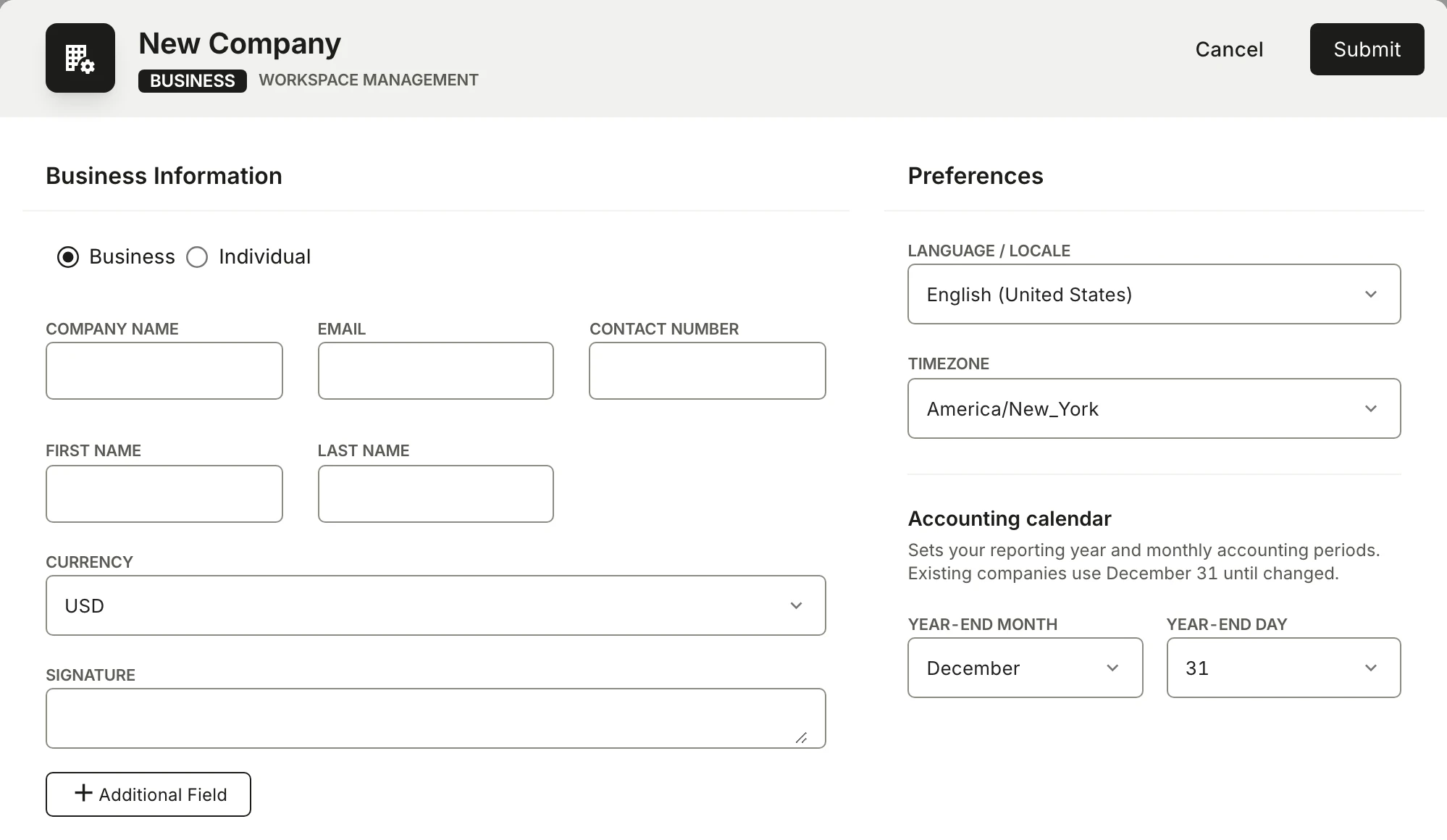
- Choose + Company and fill in the new company's name, contact, currency, address and year end, then Submit. During the trial there is no limit on the number of companies. On a paid plan, a full plan asks you to raise the company count first, from Manage plan.
- Open the workspace switcher at the top of the sidebar to move between companies. Each one has its own books, users and roles.
- Use the menu at the end of a company's row to suspend or delete it. Both ask you to confirm with a code.
A member company's own Organization page shows which organization manages it; companies are added and removed from the organization, not from the member.
The rest of this page does the same steps from code.
What you will build
| Step | Command | What happens |
|---|---|---|
| 1 | --add-company | Checks the organization's capacity and adds a second company |
| 2 | --discover | Gets a token for each company and lists each company's own chart of accounts |
| 3 | --post | Posts one journal in each company, then asks each token for the other company's journal |
The first company is the one you signed up with. It is the organization. The second is its member company: same API, its own books, users and roles.
0. Prepare credentials and download the example
You need Node.js 20 or newer, curl to download the file, and a company in sandbox.paprel.com. Create an App Connect client in that company and copy its client ID and secret. The partner domain for the sandbox is always sandbox.paprel.com.
Grant the client these permissions:
| Permission | Used for |
|---|---|
organization:company-list | Reading the organization's capacity |
company:add | Adding the second company |
organization:company-token | Getting a token for the second company |
accounting:account-list | Listing each company's chart of accounts |
accounting:journal-add | Posting a journal and reading it back |
A member-company token carries the client's own permissions, never more. So the two accounting permissions above are what the client can do inside the second company. The organization permissions and company:add are left out of that token: a member company cannot add companies or mint further tokens.
Download the organization walkthrough, or save it from the terminal:
curl --fail --silent --show-error https://paprel.com/examples/organization-walkthrough.mjs \
  --output organization-walkthrough.mjs
Inspect the file before running it. It has no npm dependencies. Keep credentials in your local terminal environment; do not commit them or run this example in browser code.
export APP_CONNECT_TOKEN_URL="https://api-sandbox.paprel.com/v1/app-connect/oauth/token"
export APP_CONNECT_CLIENT_ID="<your sandbox client ID>"
export APP_CONNECT_CLIENT_SECRET="<your sandbox client secret>"
export PARTNER_DOMAIN="sandbox.paprel.com"
The example accepts only the sandbox API host and refuses redirects. It never prints a token or the secret.
1. Add the second company
export MEMBER_COMPANY_NAME="Harbor Lettings"
export MEMBER_CONTACT_EMAIL="<an email address you control>"
node organization-walkthrough.mjs --add-company
MEMBER_COMPANY_CURRENCY (default USD) and MEMBER_COMPANY_TIMEZONE (default UTC) are optional. MEMBER_CONTACT_EMAIL becomes the company's contact address, so use a mailbox you control rather than a made-up one. The contact name and postal address are fictional example values; change them in the workspace later.
The example makes two calls with the organization's token:
GET /v1/organization/usagereadscompanies.usedandcompanies.limit.POST /v1/company/organization-companiescreates the company and returns its id indata.id.
Capacity during the trial. While the organization is on its trial, companies.limit is null: there is no company-count limit, and every company you add shares the organization's trial and ends with it. Nothing is charged.
Capacity on a paid plan. companies.limit is the number of companies the plan pays for, the organization included. The new company takes one free slot. If none is free, the example stops before creating anything. Raising the count is a billing change, so the example never does it for you; see raise the company count.
The output ends with the new company's id. Keep it:
export MEMBER_COMPANY_ID="<member_company_id from the output>"
Run this step once. Adding a company has no idempotency key, so running it again creates another company.
2. Get a token for each company
node organization-walkthrough.mjs --discover
This step only reads. It exchanges the same client credentials twice:
- Without
member_company_id, the token acts in the organization company. - With
member_company_id, the token acts in that one member company only.
Each token then calls GET /v1/accounting/accounts. The output lists both charts of accounts. They look alike, because the second company starts from the default chart, but every account id is different. An account id from one company does not exist in the other.
Choose an active cash account and a revenue account in each company:
export ORG_CASH_ACCOUNT_ID="<cash account id from organization_accounts>"
export ORG_REVENUE_ACCOUNT_ID="<revenue account id from organization_accounts>"
export MEMBER_CASH_ACCOUNT_ID="<cash account id from member_accounts>"
export MEMBER_REVENUE_ACCOUNT_ID="<revenue account id from member_accounts>"
export ACCOUNTING_DATE="$(date -u +%F)"
Do not choose receivable or payable control accounts; those are posted through document and payment workflows. Within one company, both accounts must use the company's base currency.
3. Post in both and check the books are separate
node organization-walkthrough.mjs --post
Before any write, the example checks that each chosen account belongs to the company it will post in. Then it posts one balanced journal per company through POST /v1/accounting/journals, each with its own token:
| Company | Debit cash | Credit revenue |
|---|---|---|
| Organization | 100.00 | 100.00 |
| Member company | 250.00 | 250.00 |
The amounts differ on purpose, so the two ledgers are easy to tell apart.
Then comes the check that matters. Each token reads its own journal back by anchor_id, and then asks for the other company's journal by its anchor_id. The output records what happened:
{
  "isolation": {
    "organization_token_reading_member_journal": "refused (HTTP 400 NOT_FOUND)",
    "member_token_reading_organization_journal": "refused (HTTP 400 NOT_FOUND)"
  }
}
NOT_FOUND is the same answer the API gives for an id that does not exist anywhere. A company cannot read another company's journal, and cannot learn that it exists. The example requires only that the other company's journal is never returned; if it ever is, it stops with Isolation check failed.
Open each company in the sandbox and compare the general ledger and trial balance. Each shows only its own journal. A company added through the API appears in the workspace switcher the next time you sign in; switch to it from there.
What this means for your product
- One company per customer business. Your backend stores the company id next to your own customer record and asks for that company's token when it needs one.
- One set of credentials. The organization's client is the only secret you keep. Member-company tokens are short-lived and scoped to a single company.
- The organization is not a superuser. Its own token reads its own books, and a member-company token cannot call the organization operations at all. To act in a member company, your backend asks for that company's token, and each one issued is recorded in the activity log of both the organization and the company.
- The price follows the company count. See pricing.
A platform that needs its own domain, its own brand, user provisioning or signed-in sessions for its customers uses the Partner API on Enterprise instead.
If a request fails
The example prints the HTTP status and, when the API returns one, its error code.
- 401: exchange credentials again; check the client ID, the secret, and that
PARTNER_DOMAINissandbox.paprel.com. - 403
ORGANIZATION_REQUIRED: the client's company cannot add companies. Create the client in the company you signed up with, not in a member company. - 403
ORGANIZATION_COMPANY_TOKEN_NOT_ALLOWED: the client lacksorganization:company-token. - 403
ORGANIZATION_COMPANY_TOKEN_NO_PERMISSIONS: the client has nothing to carry into the member company. Grant the two accounting permissions. - 403
ORGANIZATION_COMPANY_MISMATCH:MEMBER_COMPANY_IDis not one of your organization's companies. - 409
ORGANIZATION_CAPACITY_FULL,ORGANIZATION_PLAN_INACTIVE,ORGANIZATION_PLAN_REQUIRED: the plan has no free slot or is not live. See the Organization API guide. - 429
ORGANIZATION_DAILY_COMPANY_LIMIT: the organization has added its daily limit of companies through the API; try again later. - Other 400 / 409: inspect the error, your chosen accounts, the accounting date and transaction locks. Do not automatically retry business validation errors.
- Timeout or lost response: stop and inspect the saved checkpoint file and the sandbox. Company and journal creation are not replayed automatically.
The example stops at the first failure. It does not delete companies or journals.
Hand this to your AI agent
Using Claude Code, Cursor or another coding agent? Paste this prompt and let it run the steps on this page. It reads this guide for the details, stays in the sandbox, and asks before it creates anything.
Add a company to my Paprel organization and prove its books
are separate.

Read first:
https://paprel.com/documentation/guides/multiple-companies-separate-books
https://paprel.com/examples/organization-walkthrough.mjs
Download that script (it needs Node.js 20 or newer), read
it, and run it for the steps below. Do not write your own
API calls.

Rules for every step:
- The script only talks to the sandbox. Do not edit it.
- Pass every value as an environment variable on each run:
  APP_CONNECT_CLIENT_ID and APP_CONNECT_CLIENT_SECRET from
  my environment, and PARTNER_DOMAIN=sandbox.paprel.com. If
  a credential is missing, stop and tell me how to set it.
- Never print, log or commit the client secret. The script
  writes a checkpoint file holding ids only; that is safe.
- Never change the company count or the plan. If the script
  says the plan is full, stop.
- Do not delete or suspend anything.
- If a run fails, do not run it again. Show me the error
  and the checkpoint file.

Steps:
1. Ask me for the new company's name and a contact email I
   control. Pass them as MEMBER_COMPANY_NAME and
   MEMBER_CONTACT_EMAIL.
2. Tell me the next step creates a real sandbox company and
   must run once only. After my yes, run:
   node organization-walkthrough.mjs --add-company
   Pass its member_company_id as MEMBER_COMPANY_ID from now
   on.
3. Run: node organization-walkthrough.mjs --discover
   For each company show me, with name and id, the cash
   accounts (account_subtype "cashEquivalents") and the
   revenue accounts (account_type "revenue"). Never offer
   account_subtype "receivables" or "payables". Ask me to
   choose one cash and one revenue account in each company.
   Pass them as ORG_CASH_ACCOUNT_ID, ORG_REVENUE_ACCOUNT_ID,
   MEMBER_CASH_ACCOUNT_ID and MEMBER_REVENUE_ACCOUNT_ID.
4. Tell me the next step posts one journal in each company
   (100.00 and 250.00) and is not rolled back. After my
   yes, run: node organization-walkthrough.mjs --post
5. Show me the "isolation" lines. Both must say "refused"
   or "not returned". If either says anything else, stop
   and tell me.
6. Tell me how to see both ledgers: sign in at
   sandbox.paprel.com again and use the workspace switcher
   at the top of the sidebar.
Next steps
- Multi-tenant accounting API for SaaS: one script that adds a company per customer, invoices and records a payment in each, and reads each company's reports.
- Organization API guide: capacity, company count changes and every error in detail.
- Build Embedded Accounting in 20 Minutes: a customer, an invoice and a recorded payment inside one company.
- Glossary: how organizations, member companies and partners fit together, and who pays.
- Authentication and tokens: credential storage, expiry and permissions.
- Pricing: Standard is priced per company.