Get Credentials and a Company Token
Every Accounting API call carries a company token: a short-lived access token that acts in one company. There are three ways to get one. Pick by how many companies you run and who owns them.
Using an AI coding agent? Skip to the prompt for it.
Three ways to get a company token
| Way | Use it when | What you get |
|---|---|---|
| 1. Client ID and secret Sandbox, Standard | You work in one company, or keep one client per company. | A token for that company, limited to what the client was granted. Start with Post your first journal. |
| 2. Organization API Sandbox, Standard | One organization pays for several companies, and one client in the organization company serves them all. | A token for any member company, by adding member_company_id. It carries what the client was granted, never more. Start with Run multiple companies. |
| 3. Partner API Enterprise | Your platform provisions companies for its own customers, under an agreement with Paprel. | A session token for one user in one company, limited to that user's role. Start with Partner authentication. |
Ways 1 and 2 start with the same step: creating an App Connect client, shown below. It takes about three minutes and needs no sales call. Way 3 starts with an agreement; contact us.
Create an App Connect client
You need: a company in sandbox.paprel.com. Signing up creates one. For way 2, create the client in the organization company, the one that pays for the others.
1. Open App Connect
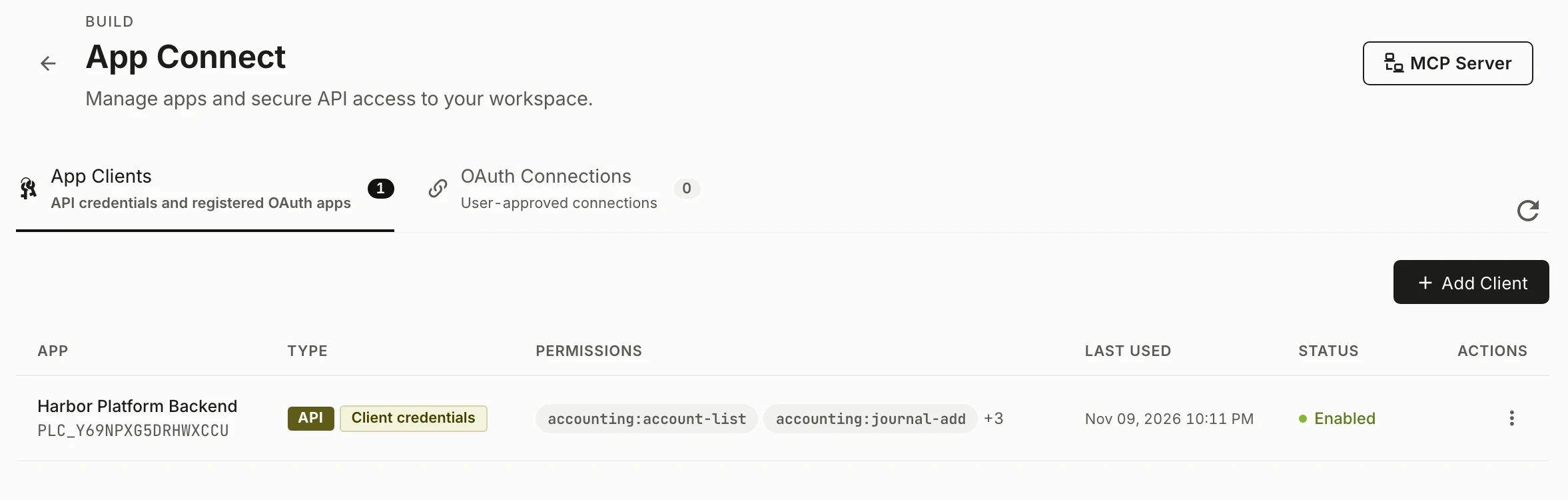
On the dashboard, choose Create App Connection. You can also open App Connect and choose Add Client. The list shows every client the company has, with its permissions and when it was last used.
2. Name the client and set an expiry
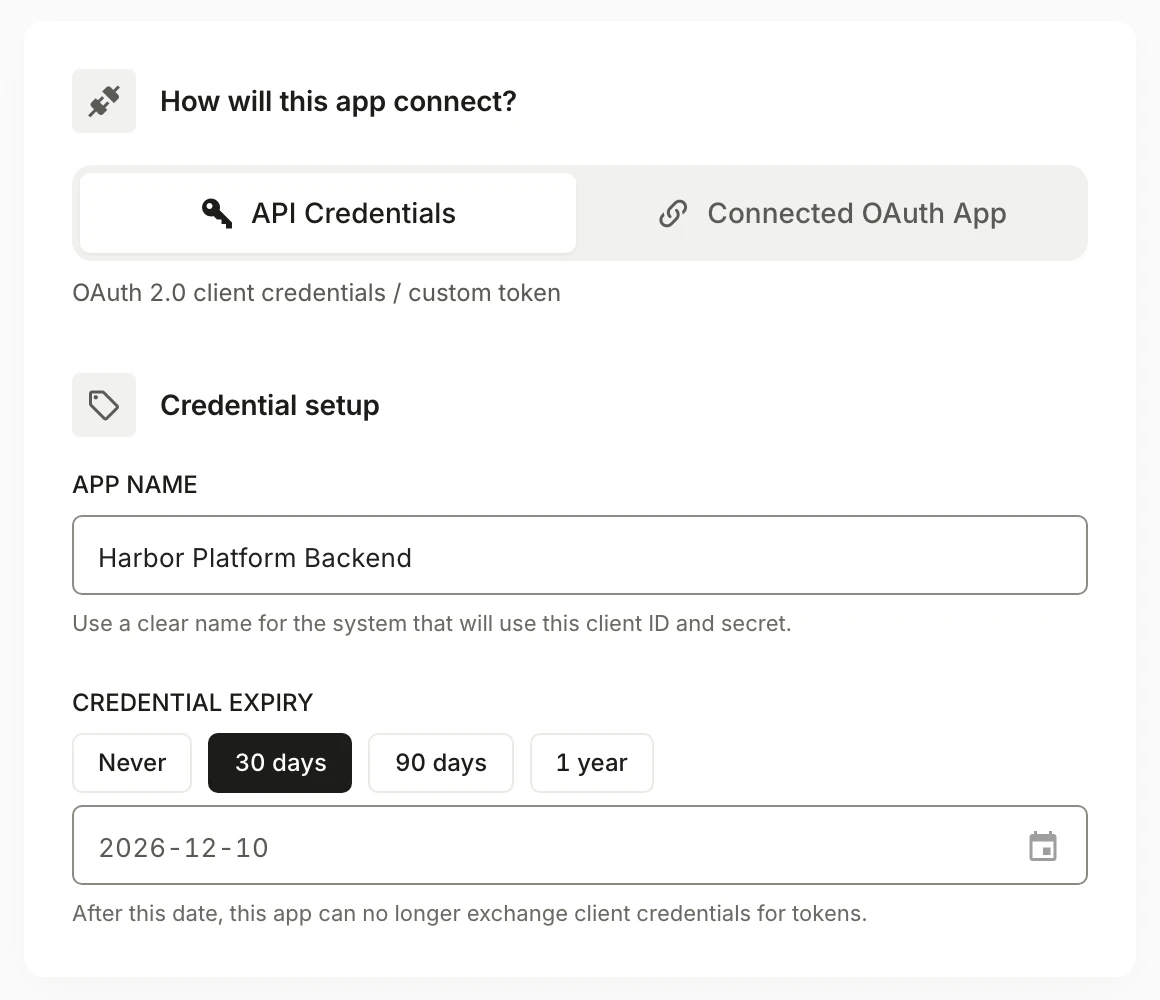
Keep API Credentials selected. Give the client the name of the system that will use it, so you can tell clients apart later. Choose an expiry: after that date the client can no longer get tokens. A short expiry is a sensible default for evaluation.
3. Choose permissions
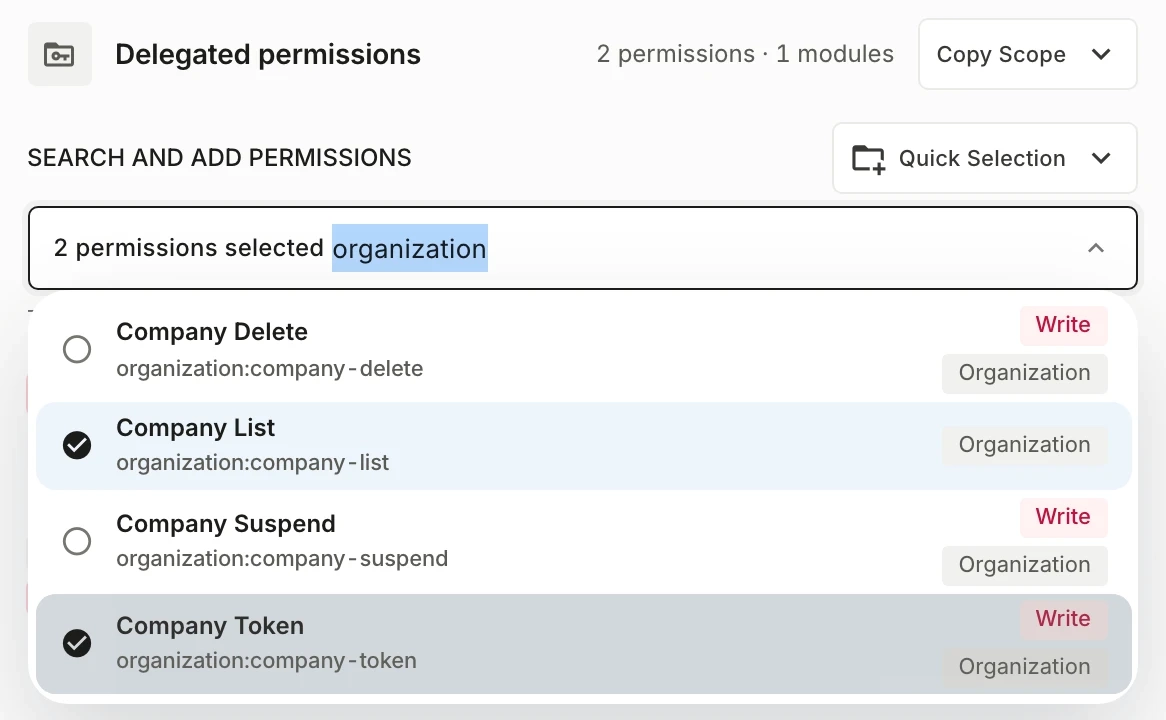
Search for a module or an action and select the permissions the guide you are following lists. A token can never do more than its client was granted, so grant only what your app uses. Permissions marked Write can create, change or delete data.
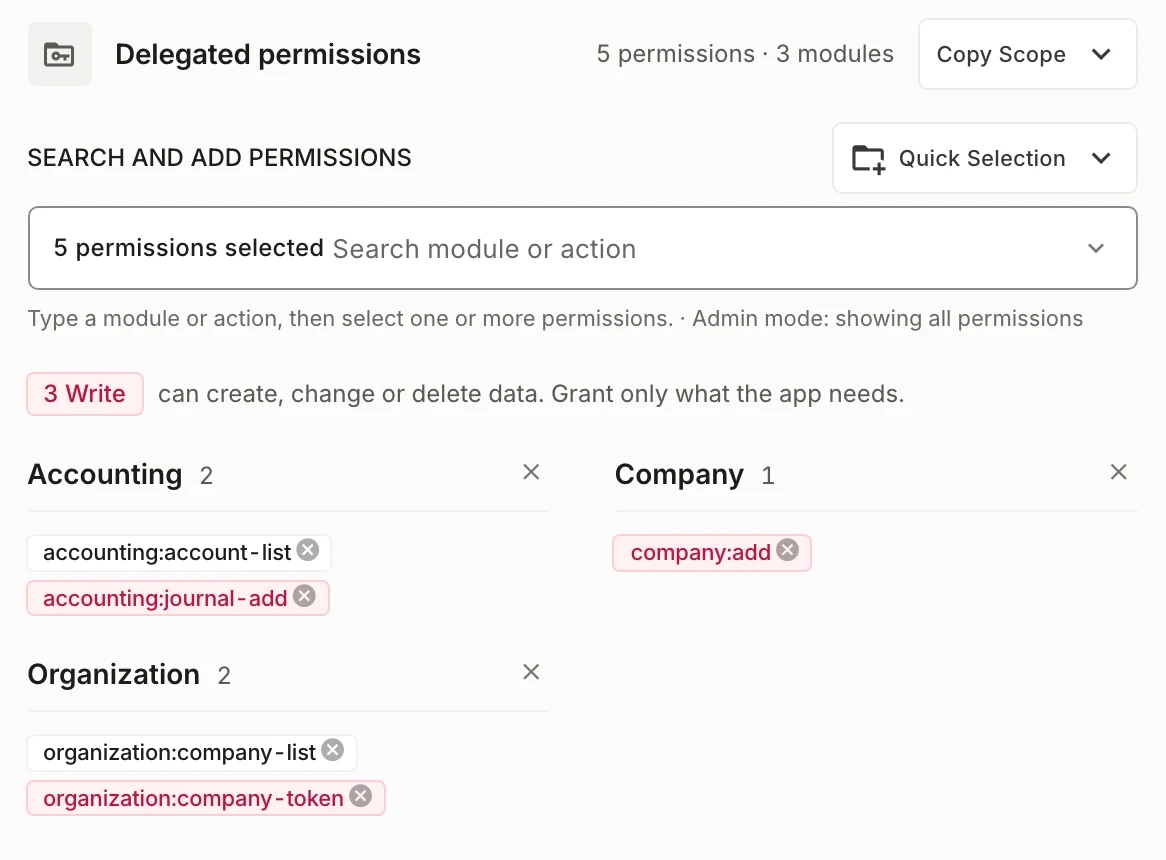
Selected permissions appear below the search, grouped by module. The image shows the five that the multi-company guide needs; the table below lists what each guide needs.
| Guide | Permissions to grant |
|---|---|
| Post Your First Journal in 5 Minutes | accounting:account-list, accounting:journal-list, accounting:journal-add |
| Run Multiple Companies with Separate Books | organization:company-list, organization:company-token, company:add, accounting:account-list, accounting:journal-add |
| Build Embedded Accounting in 20 Minutes | The account, payment-mode, invoice, customer, item and journal permissions listed in that guide |
You can change a client's permissions later from its Permissions tab.
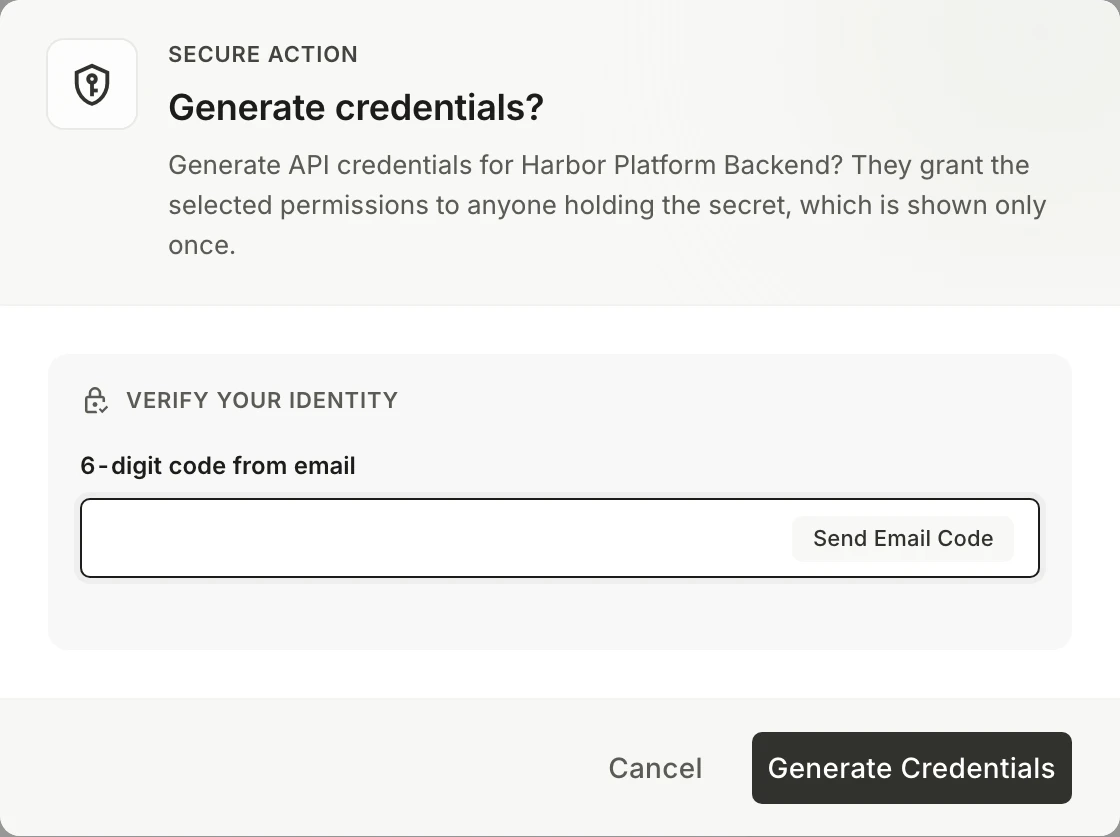
4. Confirm with a code
Generating credentials is a protected action. Choose Send Email Code, enter the six-digit code from the email, then choose Generate Credentials. If your account uses an authenticator app, enter its code instead.
5. Copy the client ID and secret
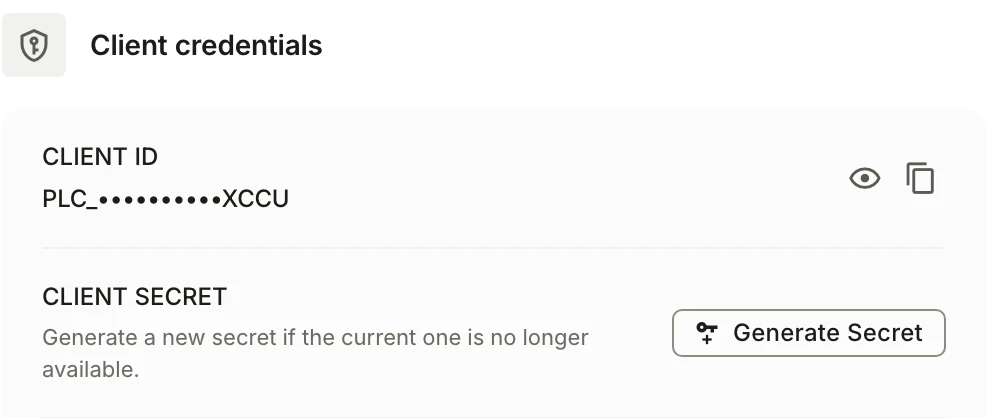
The client page shows the client ID and, once only, the client secret. Copy the secret now and keep it in a secret manager or your local terminal environment. If you lose it, choose Generate Secret to replace it; the old secret stops working.
Set the values the sandbox quickstarts expect:
export APP_CONNECT_TOKEN_URL="https://api-sandbox.paprel.com/v1/app-connect/oauth/token"
export APP_CONNECT_CLIENT_ID="<your sandbox client ID>"
export APP_CONNECT_CLIENT_SECRET="<your sandbox client secret>"
export PARTNER_DOMAIN="sandbox.paprel.com"
The partner domain for the sandbox is always sandbox.paprel.com. The client page also shows a token endpoint; it issues the same tokens as the URL above.
Get the token
1. Client ID and secret. Send the pair to the token endpoint with the client_credentials grant. The token acts in the client's own company. Authentication and tokens shows the exchange and the headers.
2. Organization API. Send the same exchange with member_company_id set to one of your organization's companies. The client needs organization:company-token, and the token carries the client's other permissions into that company, never more. Every token issued this way is recorded in the activity log of both the organization and the company. See the Organization API guide.
3. Partner API. Present your partner credential to get a partner token, then mint a session for a user in one of your companies. The session token is the company token; it lasts between 5 and 15 minutes. A partner token on its own manages companies and users and cannot read or write accounting data. See Sessions and Public API calls.
Whichever way you use, the calls that follow are the same: a bearer token and the x-partner-domain header on every request.
Keep the secret safe
Keep the secret on your server: never in browser code, a mobile app, or a repository. Authentication and tokens explains why, and how to give a browser a short-lived token instead.
Hand this to your AI agent
Using Claude Code, Cursor or another coding agent? Paste this prompt and let it run the steps on this page. It reads this guide for the details, stays in the sandbox, and asks before it creates anything.
Check my Paprel sandbox credentials. Do not create or change
any data.

Read first:
https://paprel.com/documentation/guides/create-app-connect-credentials

Rules for every step:
- Use only https://api-sandbox.paprel.com. Refuse any other
  API host.
- Read APP_CONNECT_CLIENT_ID and APP_CONNECT_CLIENT_SECRET
  from my environment. If either is missing, stop and tell
  me how to set it.
- Never print, log or commit the client secret or an access
  token. Keep a token in memory or a shell variable only.
- Send these headers on every request:
  x-partner-domain: sandbox.paprel.com
  User-Agent: a name that identifies this script
- Request bodies are JSON. When a call fails, show me the
  HTTP status and the code in the response's error.message.

Steps:
1. POST /v1/app-connect/oauth/token with the JSON body
   {"grant_type": "client_credentials", "client_id": "...",
   "client_secret": "..."}.
2. Tell me whether it worked. If it failed, say which value
   is most likely wrong.
3. From the response, report expires_at (UTC) and the list
   in "permissions". Do not show access_token.
4. Ask me which guide I want next: "Post Your First Journal
   in 5 Minutes", "Run Multiple Companies with Separate
   Books", or another. Compare my permissions with that
   guide's row in the "Permissions to grant" table on the
   page above, and list the ones I am missing.
5. Tell me where to add them: sign in at sandbox.paprel.com,
   open App Connect, open the client, and edit its
   permissions.
Next steps
- Post Your First Journal in 5 Minutes: exchange these credentials for a token and post a journal.
- Authentication and tokens: token expiry, headers and failure modes.
- Run Multiple Companies with Separate Books: one set of credentials, a ledger per company.